How to Write Image Prompts: Web Images, AI Images, and Hand-Drawn Icons
When people first ask 文卡网 to add an image, they often write just one sentence:
Add a nice-looking image for me.
This can work, but it leaves too much for AI to guess. It doesn't know whether you want a photo or an illustration, who the subject is, or whether the image belongs below the title or behind the whole poster.
An image prompt doesn't need to be long. Start by naming the type of image, then add the subject, setting, and composition. That is usually enough.
Choose how to add the image first
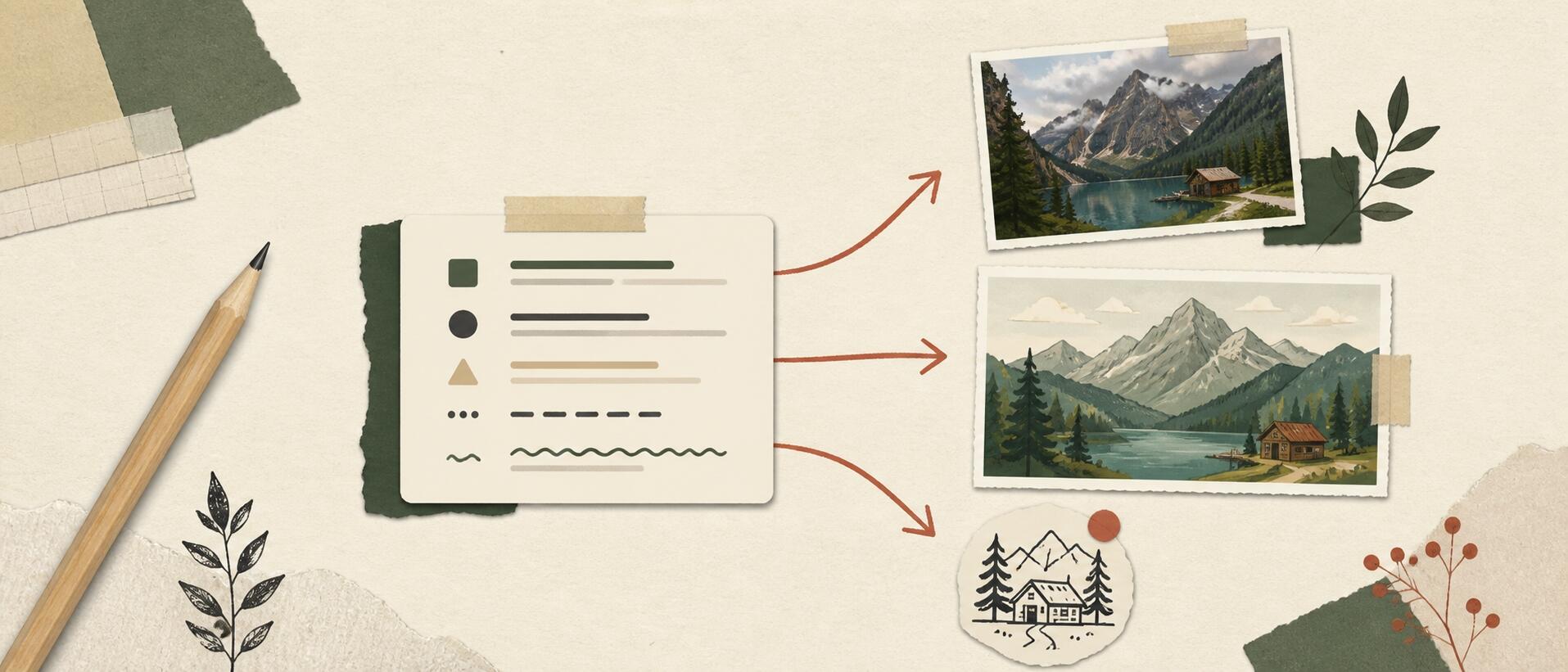
There are four common ways to add images in 文卡网:
- Images from the web: Useful for real-world subjects such as cities, travel, food, people, and office settings.
- AI-generated images: Useful for illustrations and scenes that need a consistent style, a particular mood, or a specific composition.
- Hand-drawn icons: Useful for note stickers, small decorations, badges, dividers, and simple visual metaphors.
- Images you upload: Useful for product screenshots, brand logos, QR codes, photos, and scanned documents.
Choosing the method is the most important part of the prompt. Write “Use an image from the web,” “Generate an illustration with AI,” “Add small hand-drawn icons,” or “Use the image I uploaded” to give AI a clear direction.
How to prompt for images from the web
Finding an image on the web is much like searching a photo library. Describe specific things that can be seen, rather than only an abstract feeling.
A useful pattern is:
Use an image from the web. Find a photo of [subject + setting + time of day or lighting + image orientation].
For a city-walk poster, you could write:
Use an image from the web. Find a photo of an old street in Shanghai after rain, with warm evening light and few pedestrians. Use a portrait composition with the street extending into the distance.
For a coffee-themed Xiaohongshu cover, try:
Use an image from the web. Find an overhead photo of pour-over coffee on a wooden table, with natural morning light and warm brown tones. Leave space at the top for a title.
Web search works better with concrete nouns such as “old street,” “coffee,” “wooden table,” and “morning light.” Abstract terms such as “relaxed,” “healing,” or “brand trust” are harder to match to a specific image. Turn them into visible scenes. For example, replace “relaxed” with “a park bench in afternoon sunlight, a person facing away from the camera, and plenty of open space around them.”
How to prompt for AI-generated images
AI image generation is useful for scenes that are difficult to find in a photo library. You can organize the prompt in this order:
Subject + setting + composition or viewpoint + lighting + colors + style + space for text
For example:
Generate an image with AI. A young woman sits by a window writing in a travel journal. There are train tickets, a fountain pen, and a cup of coffee on the table. Use a medium shot from the side, soft natural morning light, cream and dark green colors, and a detailed magazine illustration style. Place her on the right and leave clean space on the left for a title.
For a 3:4 Xiaohongshu cover, include the layout requirements:
Generate an image for a 3:4 portrait cover. Show an overhead view of an unfolded city map, with a red route connecting a bookstore, a café, and a park. Use a paper collage illustration style, muted cream and dark red colors, and keep the center simple. Do not generate any text.
There are two common mistakes to avoid.
The first is asking the image model to write the title. Text inside generated images is hard to get right, especially Chinese characters. Put titles, logos, prices, charts, and QR codes in 文卡网's editable layers instead of making them part of the image.
The second is asking for too many generated images on one page. A fixed-size poster usually needs only one main image. Too many images leave less room for text and dilute the visual focus. For a multi-page set, use one main image per page and keep the style and colors consistent throughout.
How to prompt for hand-drawn icons
Hand-drawn icons are not miniature AI illustrations. They work best for recognizable objects with clear outlines, such as cats, umbrellas, rockets, notebooks, and coffee cups.
You could write:
Add a small hand-drawn coffee cup icon beside the title. Use dark brown and keep it subtle.
Or:
Add hand-drawn notebook, pencil, and star icons beside the three steps. Keep them the same size and use dark green.
Simpler subjects usually produce better matches. Don't squeeze a whole scene into an icon description, and avoid abstract words such as “efficiency,” “growth,” and “trust.” Replace them with objects: a rocket for getting started, a sprout for growth, or a shield for safety.
The hand-drawn icon library searches for icons that actually exist. AI may simplify a complex description or leave out the decoration if it cannot find a suitable icon. This is normal and more reliable than inventing a nonexistent icon.
Use your own uploaded images
After uploading an image, you don't need to describe everything in it again. Focus on how it should be used.
For example:
Use the product screenshot I uploaded. Show the whole image without cropping, place it in the middle, and leave plenty of space around it.
Use the portrait I uploaded as a full-width main image. Cropping is fine. Keep the person on the right and leave room on the left for a title.
Product screenshots, logos, QR codes, charts, and scanned documents should be fully visible, so specify “Show the whole image without cropping.” Photo backgrounds can be cropped. Add instructions such as “Place the person on the left,” “Keep the sky at the top,” or “Put the visual focus in the bottom-right corner.”
A prompt you can reuse
If you're unsure where to start, copy this prompt and replace the text in brackets:
Add an [image from the web / AI-generated image] to this [poster / Xiaohongshu cover / visual card] in [size or aspect ratio]. The subject is [specific person or object] in [specific setting]. Use an [overhead / front / side / wide / close-up] view, with [natural morning light / evening backlight / soft studio lighting] and a [color] palette. Leave space on the [left / right / top] for the title. Do not generate text, logos, QR codes, or charts inside the image.
For a hand-drawn decoration, use a shorter version:
Add a small hand-drawn [specific object] icon at [position]. Use [color], keep it small, and don't let it compete with the title.
Check three things before sending the prompt: Have you specified the image type? Have you described a visible subject and setting? Have you explained where the image and text should go? If all three are clear, the result is less likely to miss the mark.
You don't need to get the prompt perfect on the first try. Generate a version, then adjust specific details: “Make the person smaller,” “Leave more space on the left,” or “Use overcast daylight instead of a night scene.” Changing one or two variables at a time usually produces more consistent results than rewriting the entire prompt.