How to Edit Visual Cards on the Infinite Canvas
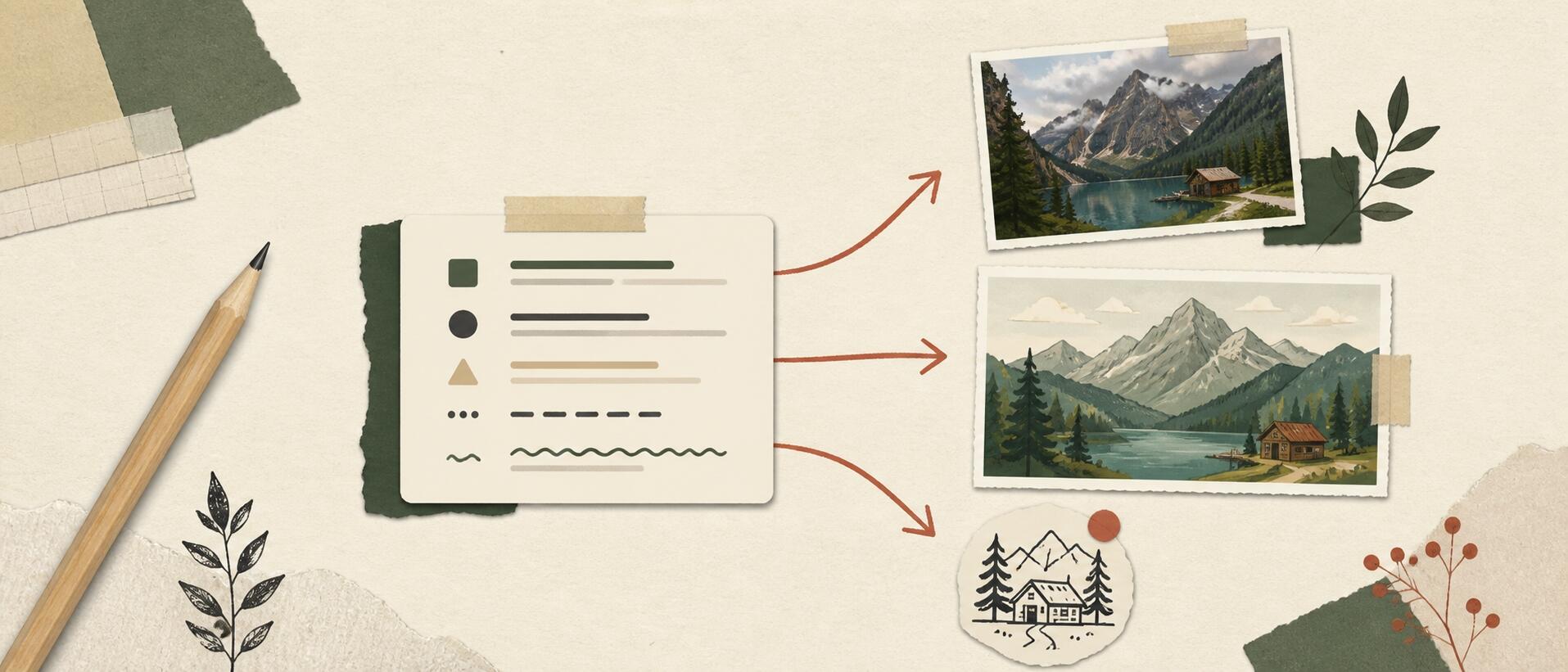
AI can generate visual cards quickly, but the result may not be exactly what you want. You might want a different image, need to change the text, or find that too much content no longer fits the layout.
You can fix all of these directly on the infinite canvas, without regenerating the whole card.
Replace an image in a card
Double-click the visual card you want to edit, then select the image inside it.
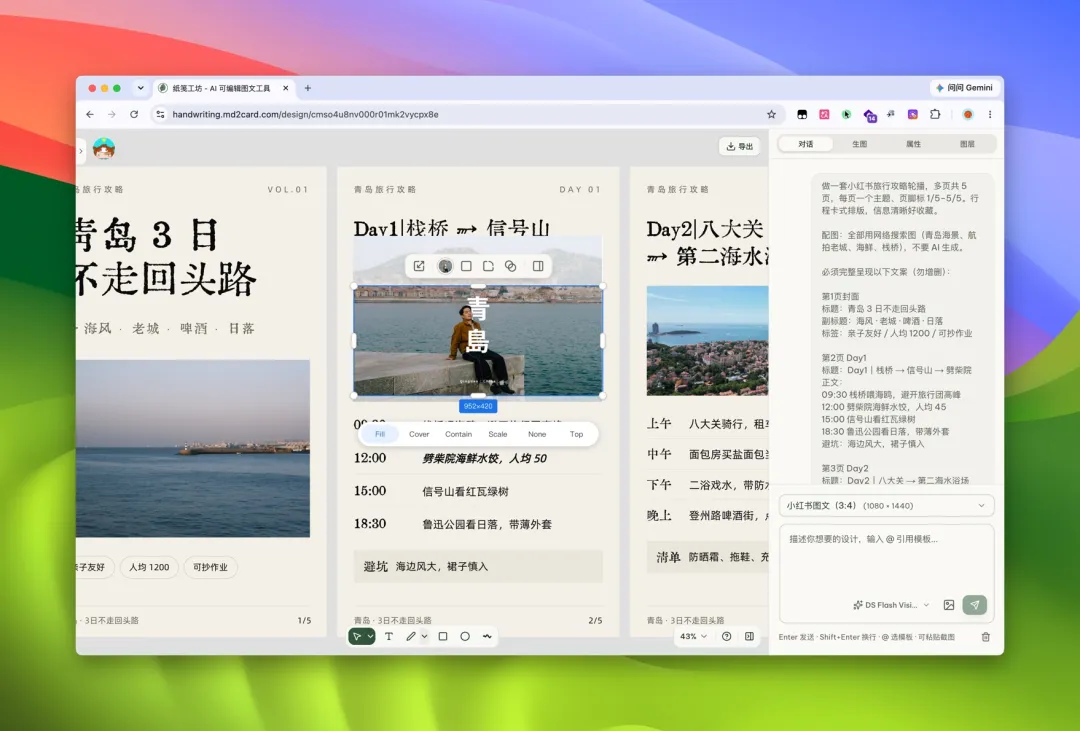
Find the new image you want to use and copy it. Return to the infinite canvas and press Command + V. After a short wait, the new image will be uploaded to the canvas.
Drag the image to adjust its position and size. If you want the person in the photo to appear in full, move the image up or down until the composition looks right.
Edit the text and its style
You can edit text independently, too.
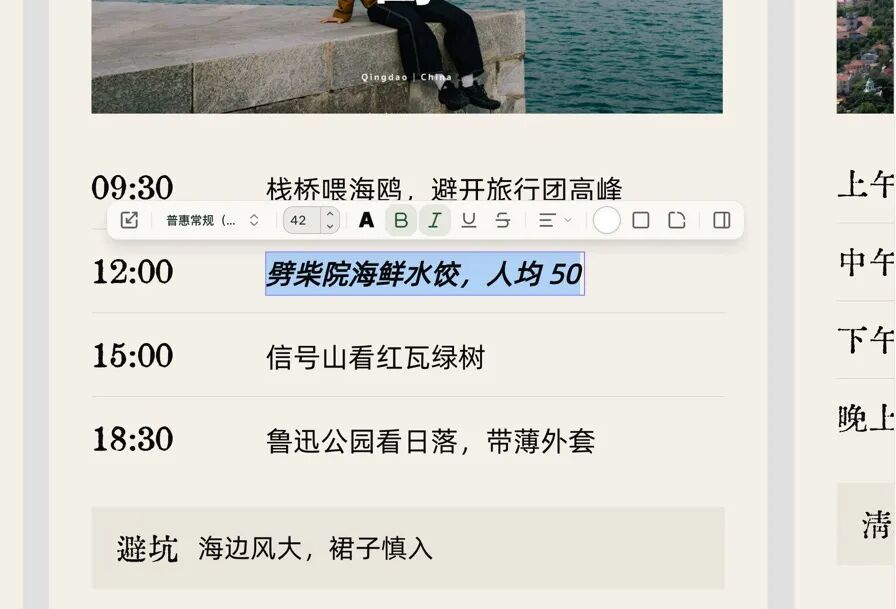
Select the text you want to change. If an outer element makes it difficult to select, hold Command to select deeper into the group until you reach the text itself.
For example, if the card says “45 per person,” you can change “45” to “50.” After editing the text, you can adjust its font, size, weight, underline, and other styles.
What if there is too much content to fit?
When AI generates a lot of content, text may extend beyond the card. For a portrait card with a 3:4 aspect ratio, first move the text and other elements upward to make room at the bottom.
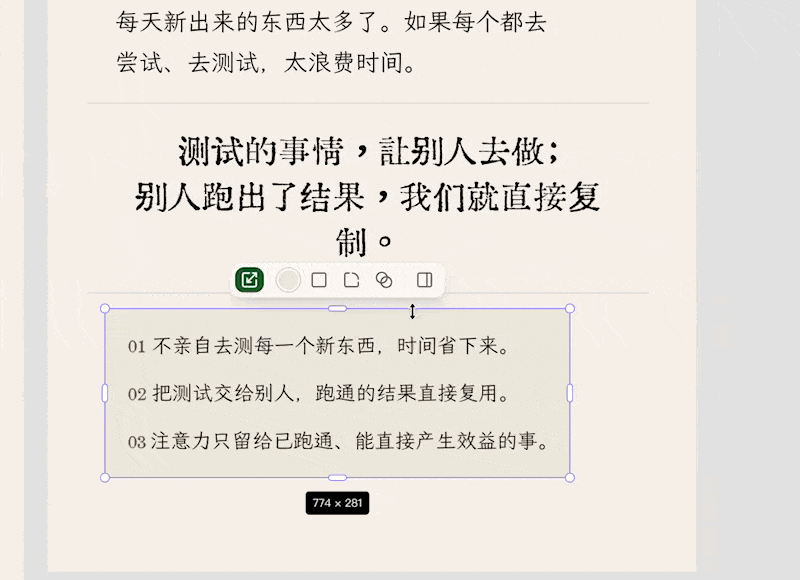
If the content still does not fit, select the whole group and use a control handle to scale it down proportionally. Then adjust the positions of the individual elements. This will usually bring the card back into a tidy layout.
The shortcuts at the bottom right of the canvas can also reduce repeated clicks and make editing faster.
If only part of an AI-generated card needs changing, edit the image, text, or layout by hand to avoid the token cost of generating it again. If you want a different overall style, you don't need to adjust everything individually. Describe the result you want in the AI chat on the right and let AI update it for you.