Add and Edit Math Formulas on the Canvas

When you're taking notes, explaining a problem, or making a knowledge card, the hardest part is often the formulas rather than the layout.
文卡网 supports LaTeX math formulas. Paste formulas together with the rest of the Markdown returned by DeepSeek, ChatGPT, or another AI. After generation, each formula becomes its own canvas layer that you can edit independently.
How to add a formula
Markdown from models such as ChatGPT and DeepSeek usually already uses $...$ or $$...$$ for formulas. Copy the whole passage and paste it into the 文卡网 chat. You don't need to separate the formulas or escape them again.
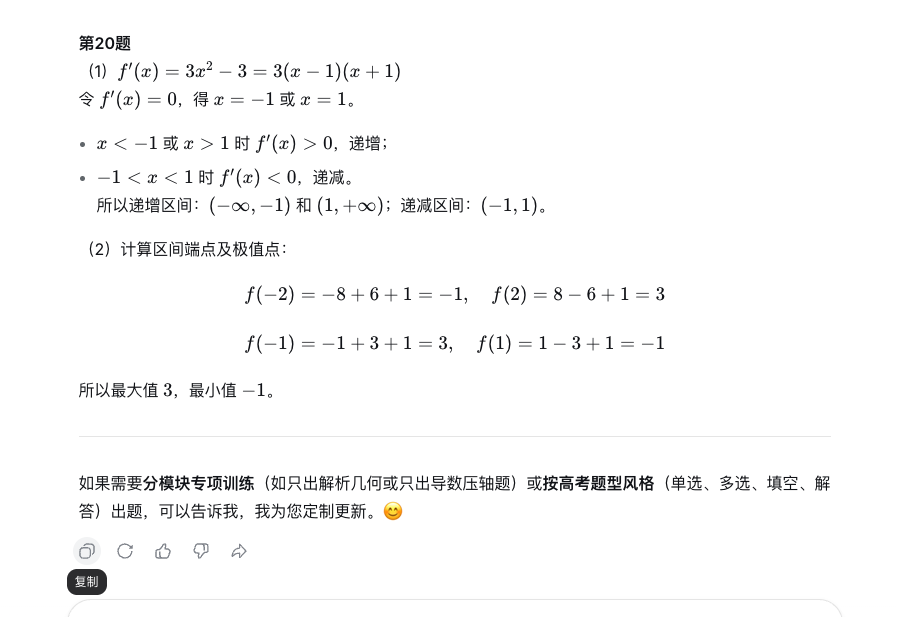
You can also simply ask for “the quadratic formula” and let the 文卡网 AI assistant write it. Either way, the result is a formula layer on the canvas.
How to edit it after generation
Select the formula layer on the canvas. A “Formula” field appears in the properties panel on the right. It contains the LaTeX source. Edit it and click “Confirm.” The formula will update while keeping its position and size.
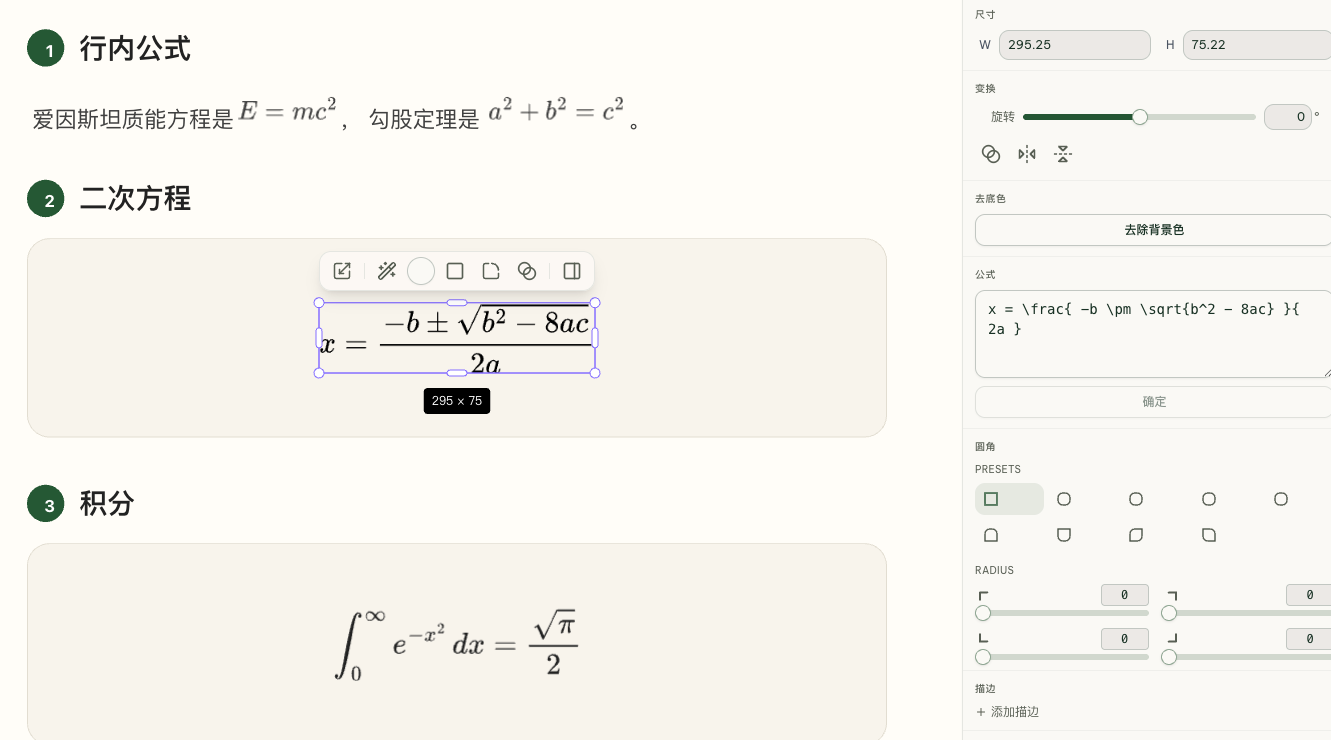
For example, change 4ac to 8ac in a discriminant. Only that layer changes; the title and explanation beside it do not need to be regenerated.
What can you use it for?
Handouts, mistake notebooks, formula cards, postgraduate entrance exam notes, and other content with equations in the text can all be used. Your design keeps the paper style you described, with formulas following the font size and colors.
If a formula is wrong, edit its source in the panel. There is no need to regenerate the entire image for one symbol.
Lay out an exam paper
Choose the A4 paper size. AI will lay out the content automatically to create an exam paper.